Mastering Texture and Flow with Scarf Procreate Stamps
Digital illustration on the iPad has revolutionized how creators work, offering portability without sacrificing power. However, many artists, from hobbyists to professional freelancers, often find themselves stuck in a loop of painting every single thread or fold manually. This is where Scarf Procreate Stamps become an invaluable asset. These specialized digital tools are designed to replicate the fluid dynamics, transparency, and intricate weaving of fabric, allowing you to add realistic scarves, shawls, and drapery to your characters in seconds. Yet, despite their utility, there are common misconceptions about how to integrate them effectively into a workflow. Understanding the nuances of these stamps prevents wasted time and ensures your final artwork maintains a hand-crafted feel rather than looking like a copy-paste job.
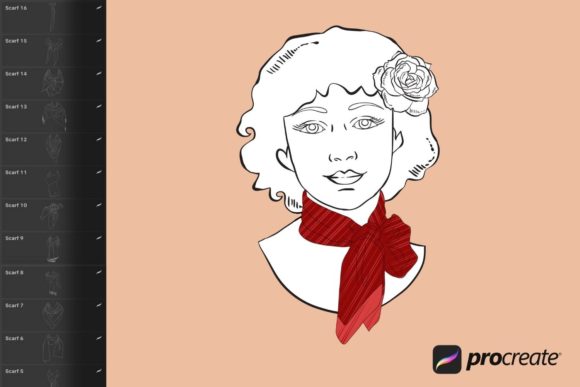
The primary appeal of Scarf Procreate Stamps lies in their ability to solve a specific problem: rendering complex fabric textures quickly. Whether you are designing characters for a graphic novel, creating marketing materials for a fashion blog, or illustrating educational content, the difference between a flat piece of clothing and a flowing scarf can define the movement of your piece. These stamps come in a convenient .brushset format, meaning they are ready to import directly into the Procreate app on your iPad using an Apple Pencil. Once installed, they offer infinite customization regarding color and opacity, making them versatile for any lighting scenario. However, simply downloading the file is only the first step; knowing how to apply them correctly is where many users stumble.
Avoiding the "Stamp-and-Forget" Trap
One of the most frequent mistakes beginners make when using texture stamps is treating them as static images rather than dynamic brush strokes. A common misunderstanding is that you can simply tap the stamp once and leave it as is. While this works for some background elements, fabric interacts with light and gravity. If you apply a scarf stamp at 100% opacity without adjusting it, it can look disjointed from the rest of your painting, appearing as though it was glued on top rather than wrapped around the subject. This lack of integration affects the overall quality and realism of your presentation.
To avoid this, you must treat the stamp as a starting point. After applying the stroke, lower the layer opacity immediately to blend it with the underlying colors. Use the smudge tool in Procreate to soften harsh edges where the fabric meets the skin or other clothing layers. Furthermore, do not rely on a single color. Real scarves have highlights and shadows woven into the material. By varying your pressure with the Apple Pencil and utilizing the opacity settings inherent in the brush, you can create a gradient effect that mimics natural light hitting silk or wool. This approach transforms a flat graphic into a three-dimensional element that enhances your composition.
Technical Compatibility and File Management
Before purchasing or downloading, it is crucial to verify your software environment. A significant oversight occurs when users attempt to use these files in applications other than Procreate. It is important to note that Scarf Procreate Stamps are ONLY compatible with the Procreate App. They will not function in Photoshop, Clip Studio Paint, or any other drawing software, even if you are working on an iPad. Attempting to force these files into incompatible programs leads to frustration and wasted resources. Always ensure you have the Procreate app installed and updated on your iPad before proceeding with a purchase.
Another area where confusion arises is during the installation process. The files are delivered as a single .brushset file. Some users expect a folder full of individual images or PNGs, which leads to confusion upon download. When you receive the email with the download link after payment confirmation, you will get one specific file. To install it correctly, follow these steps:
- Download the .brushset file directly to your iPad (saving it to the "Files" app is often the safest method).
- Open the Procreate app.
- Tap on the brush icon to open the Brush Library.
- Tap the "+" sign at the top right of any brush set category.
- Navigate to your downloaded file and tap it to import.
If you try to unzip the file or open it in a photo viewer, it will not work. The .brushset format is proprietary to Procreate, designed to keep all brush settings, textures, and behaviors intact within a single package. Understanding this technical requirement saves you from unnecessary troubleshooting.
Maximizing Versatility Through Color and Opacity
A major advantage of these stamps is the freedom to change colors instantly, yet many users underutilize this feature by sticking to the default preview colors. Because these are true brushes and not static stickers, you can swap your active color in Procreate to match your character's palette instantly. This is particularly useful for entrepreneurs and marketers who need to maintain brand consistency across different illustrations. Instead of editing the stamp in post-production, simply select your brand's hex code before making the stroke.
Additionally, experimenting with opacity is key to achieving a clean and easy-to-use result. High-opacity strokes can look heavy and artificial. By reducing the flow or building up the color with multiple light passes, you emulate the translucency of materials like chiffon or gauze. This technique adds depth to your work without requiring advanced painting skills. For educators teaching digital art, demonstrating this layering technique with scarf stamps can be an excellent way to show students how digital tools mimic traditional media behaviors.
Making an Informed Decision
When evaluating whether Scarf Procreate Stamps are right for your workflow, consider the type of projects you handle most frequently. If your work involves character design, fashion illustration, or any scenario where drapery plays a role in storytelling, these tools offer a high return on investment regarding time saved. However, if your style is strictly geometric or abstract, the organic nature of these stamps might not align with your aesthetic goals.
It is also wise to check the resolution and scalability of the brushes. High-quality stamps should remain crisp even when scaled up for larger canvases. Poorly made stamps can appear pixelated when stretched, ruining the professional look of your portfolio. Since these stamps are instant downloads, you cannot "try before you buy" in the traditional sense, so reviewing product previews and ensuring the seller provides clear examples of the brush strokes in action is essential. Look for demonstrations that show the stamps used in different colors and opacities to gauge their flexibility.
In conclusion, integrating Scarf Procreate Stamps into your digital toolkit can significantly streamline your creative process, provided you understand their limitations and potential. By avoiding the trap of static application, respecting the technical requirements of the .brushset format, and leveraging the full range of color and opacity controls, you can produce sophisticated, flowing fabrics that elevate your art. Whether you are a small business owner creating social media graphics or a professional illustrator working on a deadline, these tools offer a practical solution to a complex rendering challenge. With the right approach, you transform a simple download into a powerful extension of your artistic voice.